How to Control Ableton Live with Natural Language (MCP Setup)
Today, I stumbled across an Ableton Live MCP server that lets AI agents like Claude or Codex control Ableton using natural language.
For example, you can ask things like:
- Create a MIDI track with a drum rack
- Add a reverb to the current track
- Launch scene 3
The project lives here:
 hidingwill
Below are the commands I used to install it on macOS.
1. Install uv (required)
Both projects use uv to run the MCP server.
curl -LsSf https://astral.sh/uv/install.sh | sh
2. Install the Remote Script
Clone the repo and copy the Remote Script into Ableton's User Library:
git clone https://github.com/hidingwill/AbletonBridge.git ~/Code/AbletonBridge

cp -R ~/Code/AbletonBridge/AbletonBridge_Remote_Script \
  "$HOME/Music/Ableton/User Library/Remote Scripts/AbletonBridge"
3. Register the MCP server
I use Claude and Codex, so I set them both up:
claude mcp add --scope user AbletonBridge -- uv run --directory "$HOME/Code/AbletonBridge" ableton-bridge
codex mcp add AbletonBridge -- uv run --directory "$HOME/Code/AbletonBridge" ableton-bridge
4. Configure Ableton Live
Launch Ableton Live, then go to:
Settings → Link, Tempo & MIDI
Set:
Control Surface: AbletonBridge
Input: None
Output: None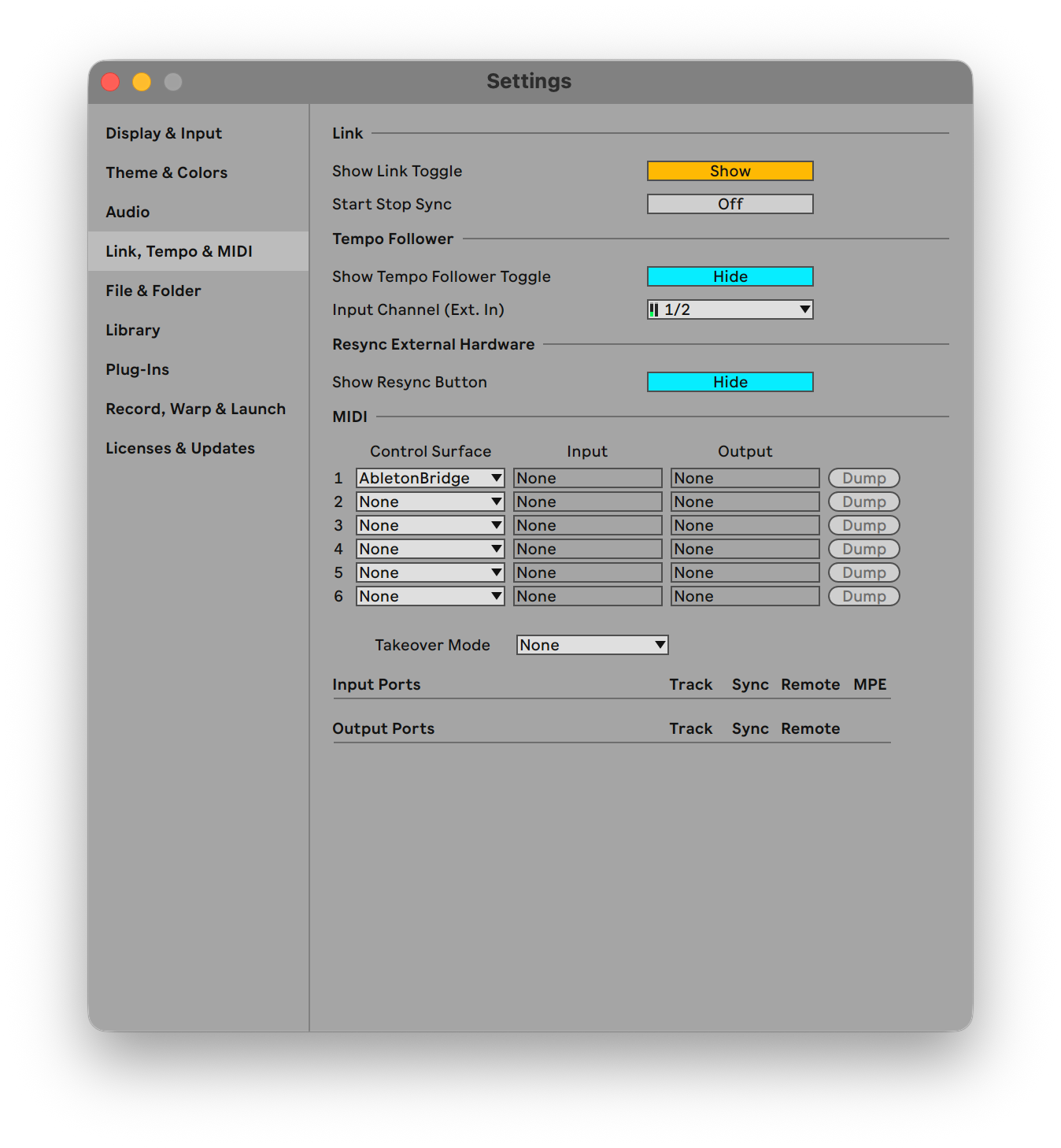
4. Ask Your Agent to Control Ableton
After installing the MCP server, quit and reopen your agent so it registers the server. For example, if you’re using Claude, close and relaunch it.
Then open Ableton Live and ask the agent to do something like:
set up a new session with a 909 drum track at 148 BPM, add a vintage-style synth, a 70s-style bass sound, and generate a few simple melodies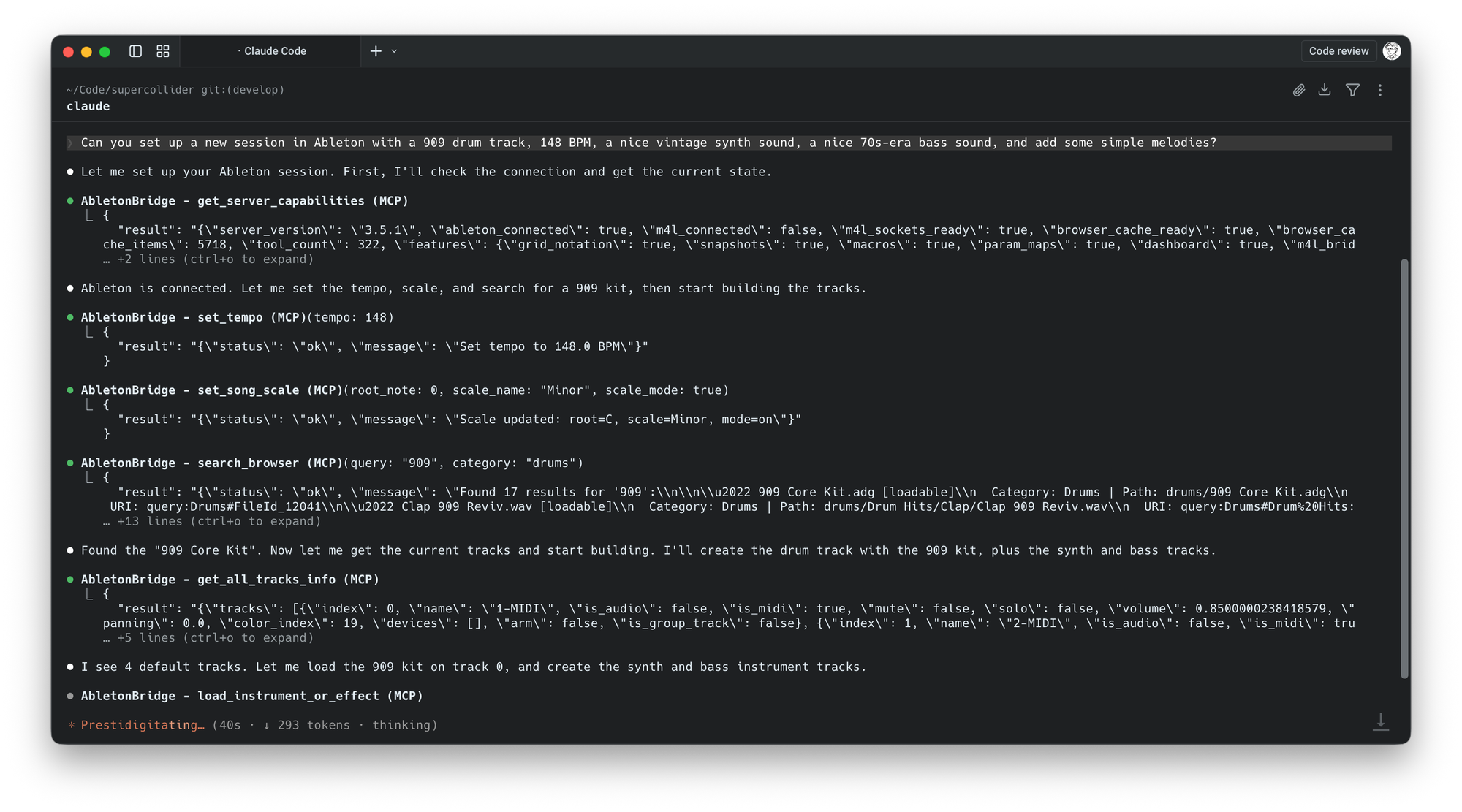


What it sounds like
I don’t see myself actually using this, but it’s pretty interesting that it’s even possible. It’s impressive that Ableton exposes a mature API that makes this kind of integration feasible.
While it wouldn’t really inspire me to make music this way, I could see it being useful for learning Ableton interactively or for automatically setting up more complex sessions.
Windows note
If you’re on Windows and the install fails, review this issue from the original source repository (this post links to a more developed fork) before proceeding. The Remote Script path may differ, and installing into the User Library may not work on some systems.